Both templates and instructions can be edited directly by Template Owners. Template Owners have increased privileges to set these for all users in an organisation. If you're unsure who holds these privileges, contact Rico Support.
To edit the templates or instructions set within any step of your workflow, navigate to Settings (top right-hand corner of your Rico browser) > Templates, select the workflow that houses the templates or instructions you'd like to edit, then navigate to the specific step. You'll be presented with the following screen:
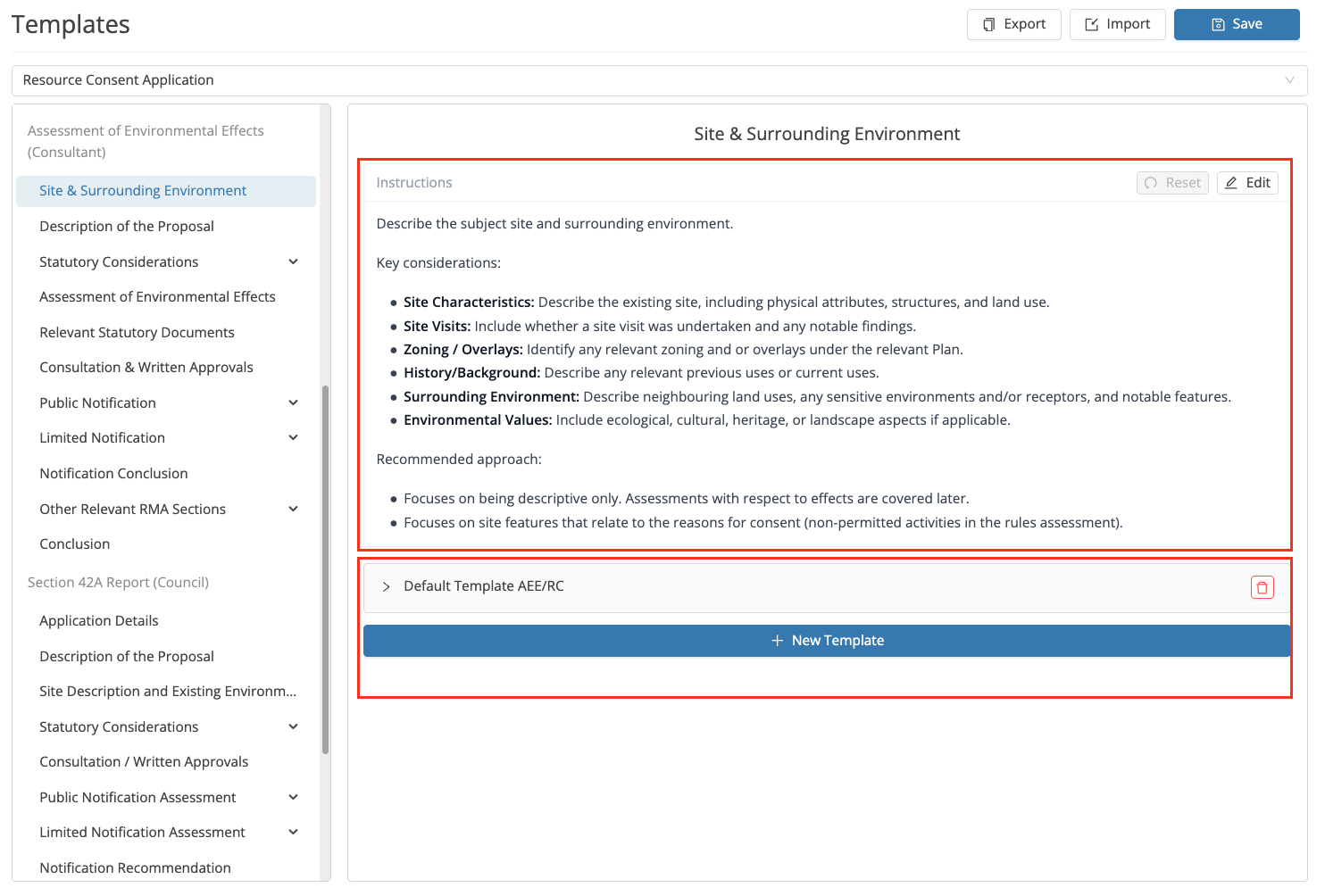
Templates
You can edit an existing template or add a New Template.
All templates can be renamed by writing over the existing template title. By default, any newly created template in your library will be named 'Default Template'.
You can load as many templates on a given step as you like.
Some tips to help you along the way:
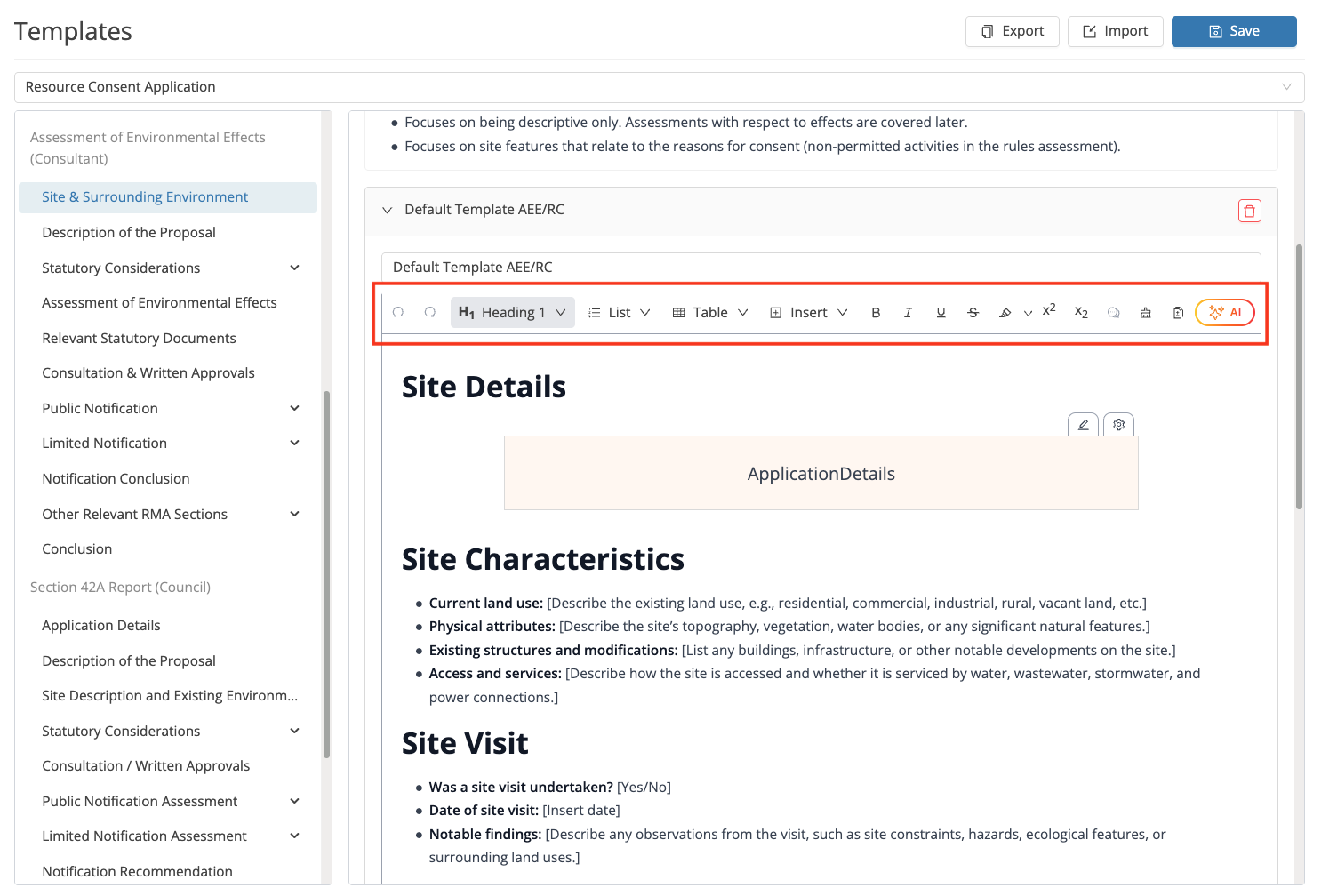
- Use the toolbar (highlighted below) to help with your formatting when creating and editing templates.
- Use the '@' Command or '/' Command to help you build automations into your templates
- Build your templates in a test project, then copy and paste them directly into your template library. This is particularly helpful if you'd like to view the template headings and formatting in the 'Review' tab before formalising changes.
- Always start at Heading Level 1 when formatting your templates with headings. Rico automatically adjusts headings to the correct level for your report section.
Troubleshooting:
- Not seeing your most recent template updates in your project? → Always refresh Rico to ensure you're viewing the most up-to-date library. Updates made in your template library will not retrospectively update any projects where a template has already been selected. Any changes made to your templates will only apply to new projects, or to existing projects that have blank steps.
Instructions:
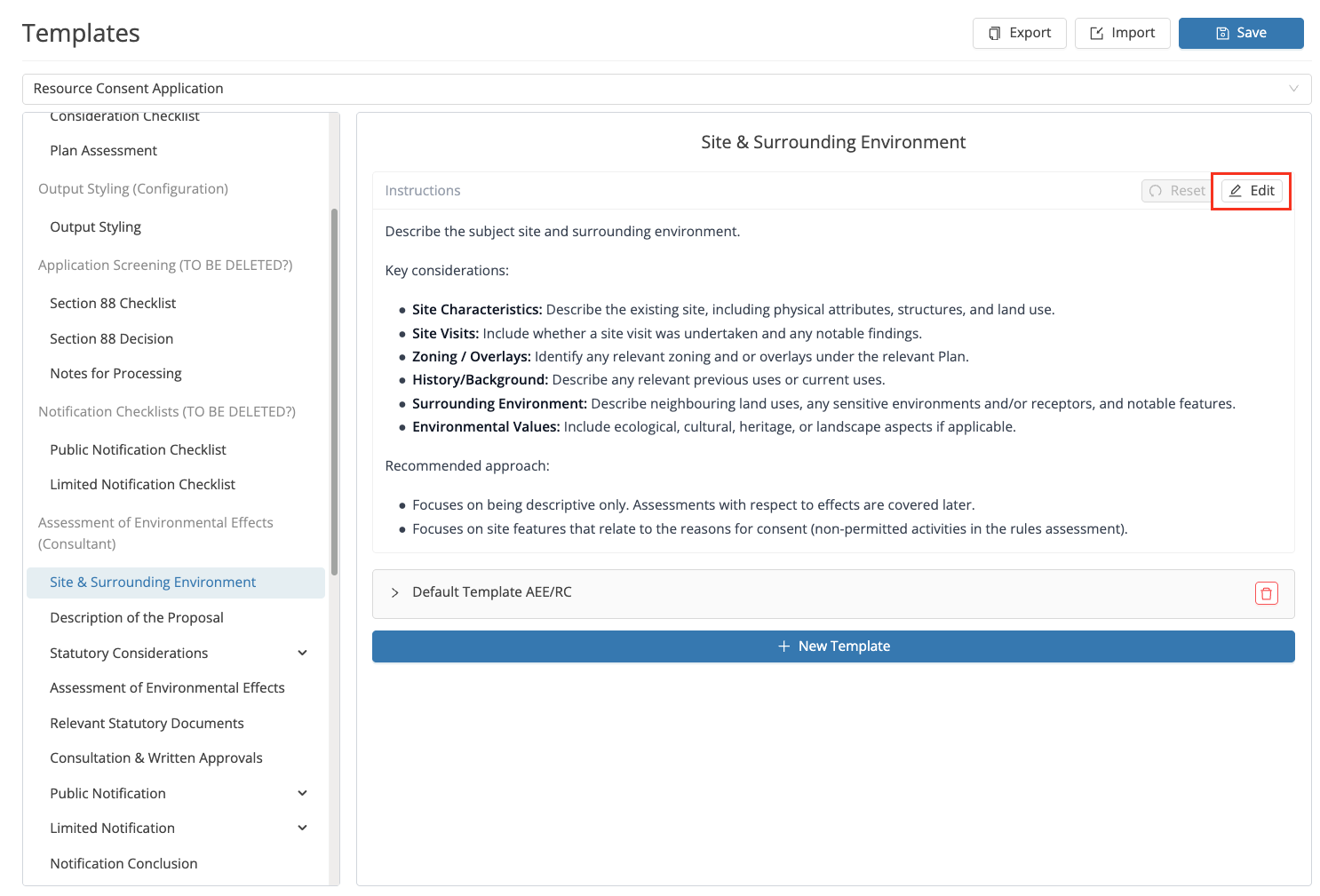
Instructions can be edited on this same screen. Select the edit icon on the right-hand side to insert new instructions or edit existing ones. As with templates, you can format instructions using the toolbar once editing is enabled.
Saving your changes:
Always save your work after editing templates or instructions. Ask users in your organisation to refresh Rico to pull the update through — otherwise, the changes will apply when they next log in.
