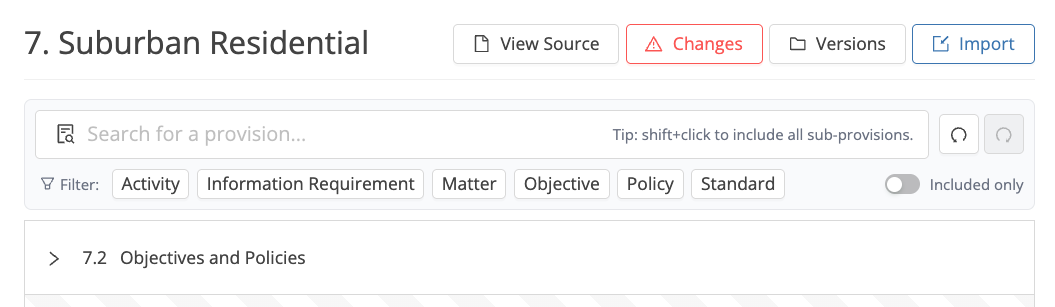
Searching and filtering
A search bar and provision-type filters help you find what you need quickly. Selecting a filter tag (e.g. 'Activity') shows every provision tagged as 'Activity' in the document. You can apply multiple filters at once, and select or deselect tags at any time to adjust your view.
You can also filter by 'Included only', which shows only the provisions you have included in your assessment.
Including provisions
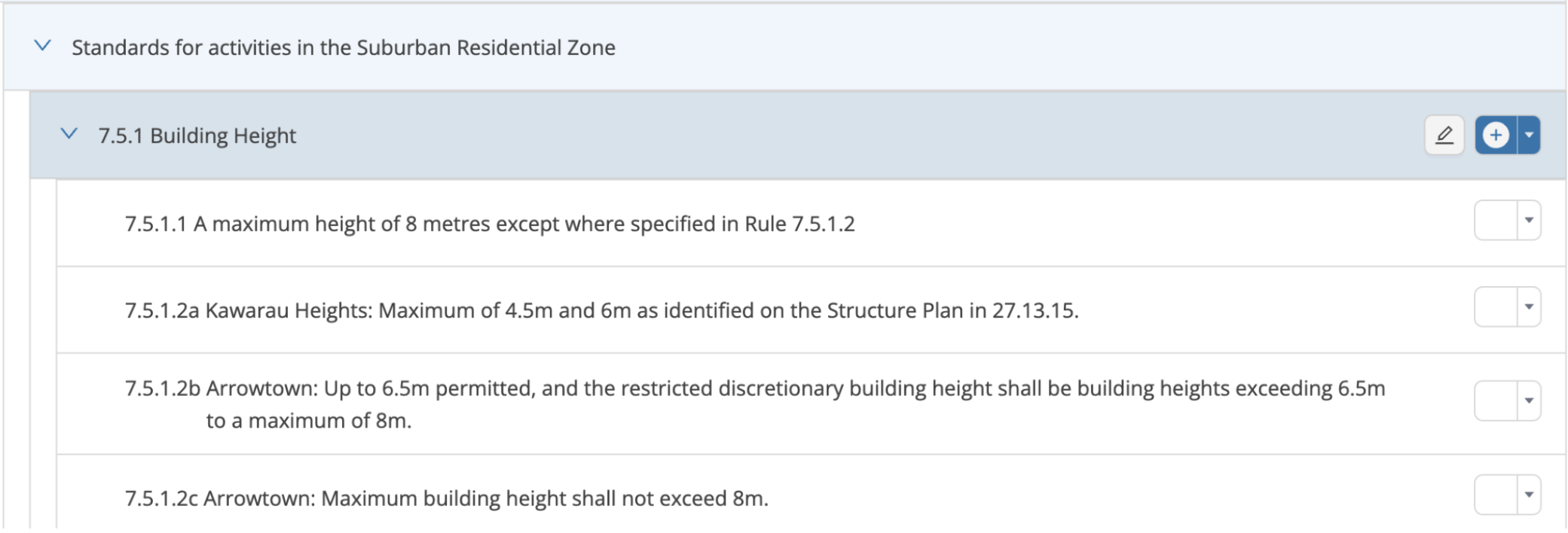
Items in a plan are referred to as provisions. To include one in your assessment, click the blank box alongside it.
.png)
Sub-provisions are not included by default. Click a sub-provision individually to include it, or hold Shift and click to include all sub-provisions beneath a given provision. The same Shift-click action works in reverse to de-select all sub-provisions at once.
Including provisions with statuses
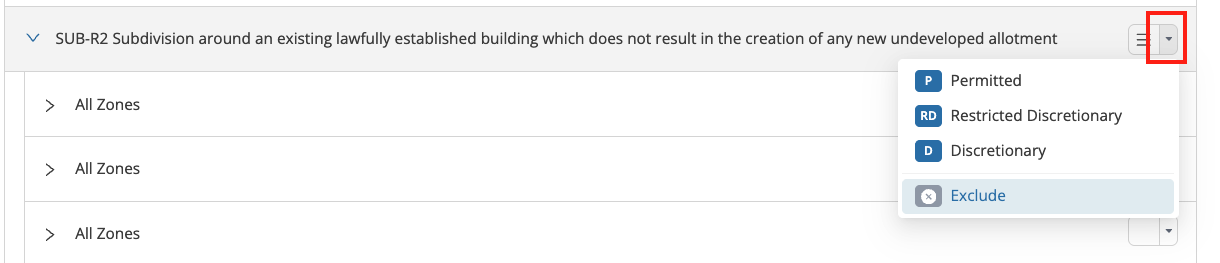
Rico displays provisions with statuses in two ways:
- Single status — where a provision has one status (as defined by the plan), it shows by default. Click the status on the right-hand side to include it in your assessment.

- User-set status — where the status can be set by you, a 3-line icon appears. Choose from the list of applicable statuses as defined by the plan, giving you the flexibility to assign a status according to compliance against the relevant provisions.

To set a status, either click through the status options or use the dropdown to show the full list.
Assessing compliance
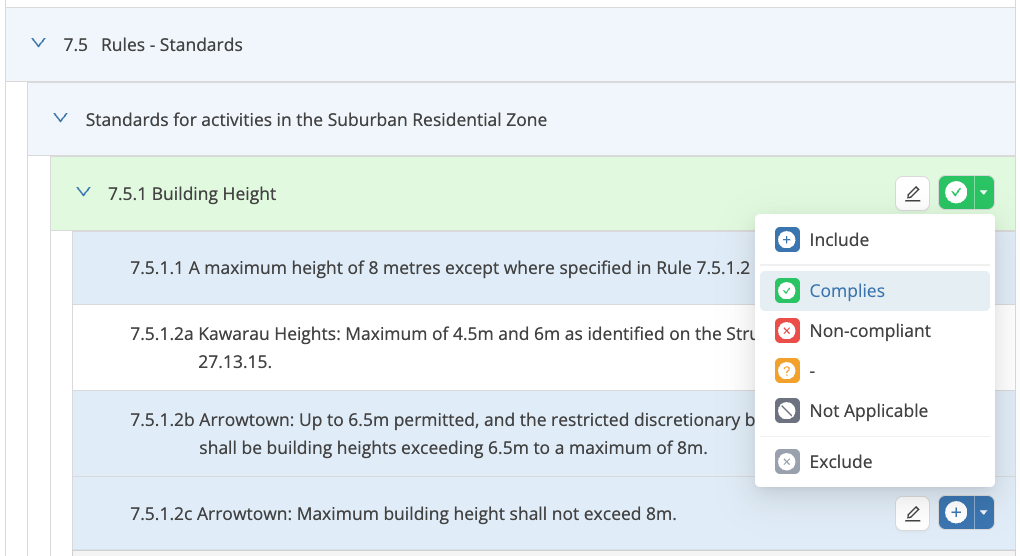
You can mark compliance against any provision, except those with a status. This gives you the flexibility to assess at the level that suits the plan and project, recognising that what you may want to mark as "complies" varies across different plans.
To add a compliance assessment, click the dropdown on the right-hand side of the select box and choose the relevant option. Other items can be included or excluded as relevant to your assessment.
.png)
Plan versions and changes
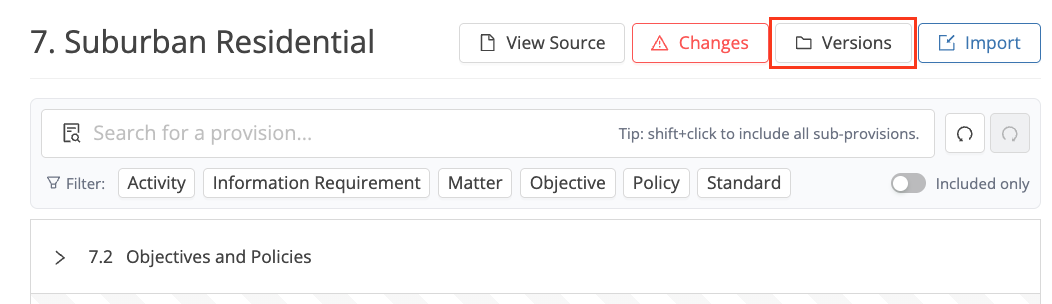
Plan assessments are locked to the version of the plan that was live when you created your project. If a new version of a plan goes live, Rico will:
- Alert you via the versions button
- Let you update your assessment to the latest version
- Identify any changes to provisions between versions, so you can review them and adjust your assessment before updating
.png)
Inserting the Plan Assessment into your report
View our guide on Using the '/' Command to Insert Plan Assessment Tables into your report.
Need help?
Rico's help centre is being updated to reflect this functionality over the coming weeks. If you run into any issues in the meantime, get in touch via the usual Rico help channels.
